Google Search Console is a free tool that shows you how Google sees your site and lets you fix how it appears in search results. The first thing to do is add your site as a property and verify ownership, with a Domain property giving you the fullest picture. From there, you can monitor indexing, track clicks and impressions, and catch alerts before they become real problems.
TL;DR:
- Using a Domain property gives a comprehensive view of all subdomains and protocols, but verification requires adding a DNS TXT record.
- Checking high impressions with low CTR pages helps identify titles or meta descriptions needing improvement rather than ranking issues.
- Submitting a sitemap speeds up Google indexing, but it can take days for coverage errors to resolve after updates or fixes.
- Running Live Tests from URL Inspection before requesting indexing ensures recent changes are correctly applied and avoids resubmitting problems.
- Search Console data is delayed; performance reports show trends over several weeks, so avoid judging short-term fluctuations as definitive.
Table of Contents
- Adding and verifying your property the right way
- What clicks, impressions, CTR, and position actually tell you
- Reading the Coverage report and managing your sitemap
- How to use URL Inspection before and after a fix
- Core Web Vitals, mobile usability, and structured data health
- Handling alerts, manual actions, and sudden traffic drops
- Your first 30 days with Search Console
- Does your site need Discover or AMP reports?
- Why Search Console data isn’t always real time
- What Search Console tells us when we review client sites
- Turning Search Console insights into real fixes
- Where to go for the original documentation
- Sources
- FAQ
Adding and verifying your property the right way
You have two property types to pick from: Domain and URL-prefix. A Domain property covers every subdomain and protocol (http, https, www, non-www), so it gives you the fullest view of your site’s data, while a URL-prefix property only tracks the exact path and protocol you enter.
Verification confirms you control the site, and Google offers several methods:
- DNS record: required for Domain properties; add a TXT record through your domain provider.
- HTML file upload: upload a Google-provided file to your site’s root directory.
- HTML tag: paste a meta tag into your homepage’s header.
- Google Analytics or Tag Manager: use an existing account with admin access, no file uploads needed.
Check Google’s verification documentation for exact requirements, since each method has its own limitations. Once verified, add teammates under Settings as Owner, Full User, or Restricted User, and keep Owner access limited to whoever manages hosting or DNS. If verification fails, double check you used the correct account and that DNS changes have had time to propagate.
What clicks, impressions, CTR, and position actually tell you
The Performance report is where most beginners spend their time, and it tracks four core metrics: clicks, impressions, average CTR, and average position. Clicks count how often someone reached your site from a search result, impressions count how often your link appeared, CTR is clicks divided by impressions, and average position reflects the topmost ranking your page held for a given query.
The Performance report defaults to the last three months of data, and you can filter it by query, page, device, or country to isolate specific issues.
- Sort by impressions, then look for pages with high impressions but low CTR.
- Filter by device to see if mobile performance lags behind desktop.
- Compare date ranges to catch sudden drops tied to a site change.
A page ranking in position 8 for a popular query but earning few clicks usually points to a weak title or meta description, not a ranking problem. Average position can be misleading since it reflects only the topmost result from your site for that query, so treat it as a directional signal rather than a fixed score. Test new titles, write clearer meta descriptions, and add structured data where it applies before assuming the ranking itself needs work.
Reading the Coverage report and managing your sitemap
The Coverage report sorts your pages into four buckets: Indexed, Excluded, Error, and Valid with warnings. Indexed pages are live in search results, Excluded pages were intentionally or unintentionally left out, Errors block indexing outright, and Valid with warnings means the page is indexed but has an issue worth reviewing.
- Noindex tags: remove them from any page you want Google to index.
- Robots.txt blocks: check the file isn’t accidentally blocking important sections.
- Server errors: fix 500-level errors so Googlebot can crawl the page.
- Canonical conflicts: confirm your preferred URL matches what Google selects.
Submitting a sitemap through the Sitemaps section tells Google exactly which pages matter, though processing can take days rather than hours. Recheck the Coverage report after any major redesign, URL migration, or content purge, and resubmit your sitemap whenever you add a new site section.
How to use URL Inspection before and after a fix
The URL Inspection tool checks a single page and returns one of three verdicts: the URL is on Google, the URL is not on Google, or the URL is on Google but has issues. It pulls from two sources: the Indexed view, which shows what Google last recorded, and the Live Test, which checks the page in real time.
- Check crawl allowed and indexing allowed to confirm Google can access the page.
- Look at the Google-selected canonical to see which version Google treats as the main URL.
- Note the last crawl date to know how current the indexed data is.
Run a Live Test whenever you’ve made recent changes, since the Indexed view won’t reflect them yet. Comparing the two is the fastest way to tell whether a fix hasn’t been crawled yet or was implemented incorrectly.
Pro Tip: After fixing a page, always run Test Live URL before clicking Request Indexing, so you’re not resubmitting the same problem.
Core Web Vitals, mobile usability, and structured data health
Search Console reports three Core Web Vitals: Largest Contentful Paint (loading speed), Cumulative Layout Shift (visual stability), and Interaction to Next Paint (responsiveness). You’ll find these under the Page Experience section, alongside mobile usability checks that flag issues like text too small to read or clickable elements placed too close together.
- Mobile usability errors often stem from unresponsive themes or oversized images.
- HTTPS is checked automatically and flagged if your site serves insecure pages.
- Enhancement reports cover structured data, showing specific markup errors you can fix and retest.
Search Console groups enhancement issues by type and severity, which helps you spot patterns across many pages at once rather than fixing one URL at a time. Fix anything blocking indexing or triggering a manual action first, then move to Core Web Vitals and structured data, since those affect appearance and user experience rather than whether the page shows up at all.
Handling alerts, manual actions, and sudden traffic drops
Search Console emails you about three kinds of problems: manual actions, security issues, and sharp changes in indexing or traffic. Google’s own guidance notes that most site owners don’t need to check daily, since critical issues trigger an email automatically.
- Inspect the affected URL first to see its current indexing status.
- Review recent site changes, deployments, or plugin updates that might explain the drop.
- Run a Live Test, then request indexing once you’ve confirmed a fix.
Use the Removals tool only for content you need hidden temporarily, like an outdated page; permanent fixes belong at the source through noindex tags or deletion. When a problem persists, Google’s help documentation and its public forums are the most reliable next stop.
Your first 30 days with Search Console
A beginner doesn’t need to touch every feature at once. This order gets you from zero to useful data fastest.
- Days 1 to 3: add your property, verify ownership, invite any teammates, and submit your sitemap.
- Weeks 1 to 2: inspect your top pages, scan Performance for high impressions paired with low CTR, and rewrite two or three titles or meta descriptions.
- Weeks 3 to 4: fix any Coverage errors, review Page Experience data, and retest each fix with URL Inspection before requesting indexing.
- Ongoing: run a monthly health check, keep notes on changes you’ve made, and connect findings to whatever content or development work follows.
Pro Tip: Keep a simple log of every title or page change you test, so you can match it against Performance data a few weeks later.
Does your site need Discover or AMP reports?
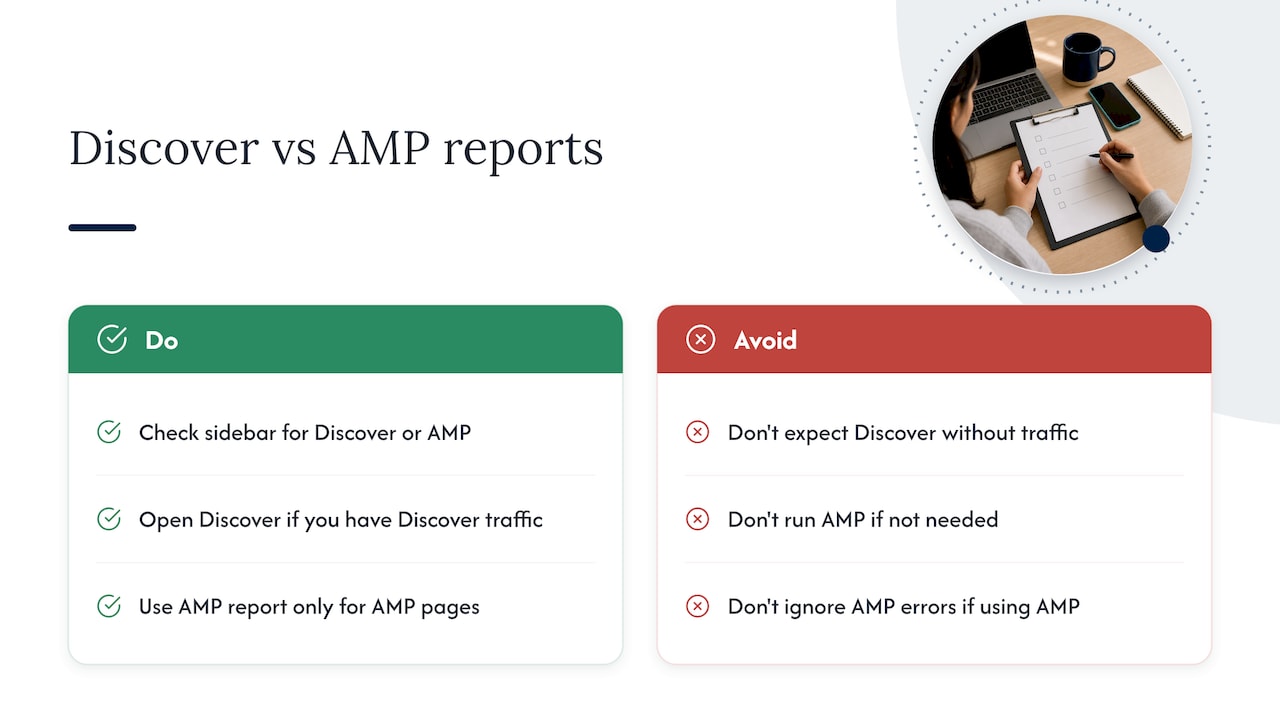
Not every site will see a Discover report in Search Console, since Discover only appears for sites that have generated enough traffic through Google’s Discover feed, a content stream shown on mobile devices separate from standard search results. If your site qualifies, the Discover report shows impressions and clicks the same way the Performance report does, but it reflects feed placement rather than search queries.
AMP (Accelerated Mobile Pages) reporting has become far less relevant for most beginners. Google no longer requires AMP for inclusion in top news features, and many sites have moved away from maintaining separate AMP versions of their pages. If your site still runs AMP pages, Search Console’s AMP report will flag validity errors, similar to how the structured data reports work, but a new site built on a standard content management system is unlikely to need it. Check your Search Console sidebar: if Discover or AMP reports don’t appear, your site hasn’t qualified or doesn’t use that format, and you can skip ahead to the reports that do apply.
Why Search Console data isn’t always real time
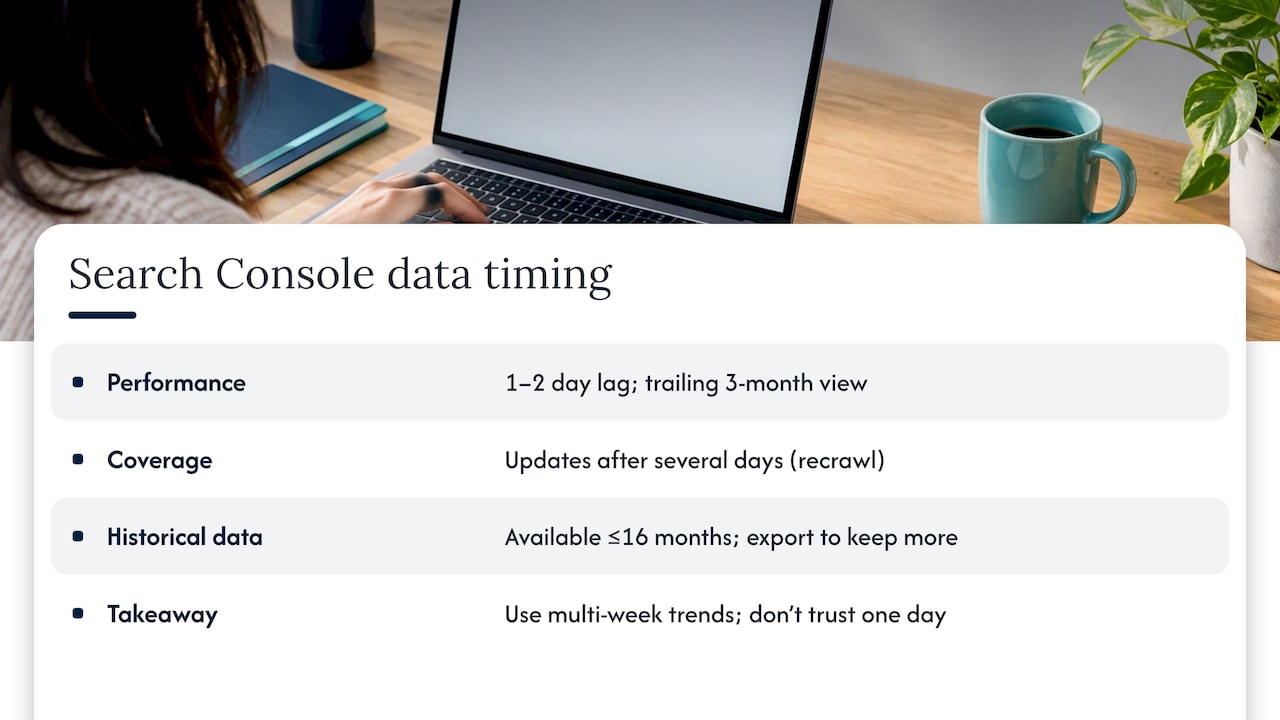
Search Console data has a lag, and understanding it prevents a lot of false alarms. The Performance report typically shows data with a delay, and Google’s documentation notes the default view covers the trailing three months, with the most recent day or two often incomplete as Google finishes processing clicks and impressions.
Coverage and indexing data update on a different schedule entirely. After you submit a sitemap or fix an error, it can take several days before the Coverage report reflects the change, since Google needs to recrawl and reprocess affected pages. This is why checking Coverage the day after a fix often shows nothing new: the data hasn’t caught up yet.
Historical data also has limits. Performance data beyond 16 months typically isn’t available inside the interface, so if you want a longer view, you’ll need to export and store reports yourself on a recurring basis. None of this means the tool is unreliable, but it does mean a single day’s numbers rarely tell the full story. Look at trends across a few weeks before concluding that a change helped or hurt, and resist the urge to judge a fix based on the next morning’s report.
What Search Console tells us when we review client sites
We use Search Console as a starting point on nearly every client site, since it often surfaces quick wins for local lead generation that would otherwise go unnoticed, like a service page with steady impressions but a title that undersells the offer. Reading these reports accurately shapes which fixes we prioritize first.
— Michael
Turning Search Console insights into real fixes
Spotting a problem in Search Console is one thing. Fixing it, whether that’s a Core Web Vitals issue slowing your site, a title that needs rewriting, or a coverage error from a recent redesign, is a different skill set entirely.

Tradewinds United Media’s SEO and website design services pick up exactly where this data leaves off, turning impressions-but-no-clicks pages into rewritten titles and turning Core Web Vitals flags into actual site fixes. Clients get a local SEO report that tracks these changes over time, so you can see what moved and why. If you’d rather hand the implementation to someone else, get a prioritized action plan through our SEO services page.
Where to go for the original documentation
- Get started with Search Console
- Ownership verification methods
- Performance report overview
- E-commerce KPI dashboard case study for turning metrics into business insights
Sources
- Get started with Search Console – Search Console Help
- Performance report (Search results): Overview and basic setup – Search Console Help
- Ownership verification – Search Console Help
- Dev
FAQ
What are the steps to use Google Search Console?
Add your site as a property, verify ownership through DNS, an HTML file, or a tag, and then submit a sitemap so Google can crawl your pages. From there, check the Performance report for clicks and impressions and the Coverage report for indexing errors on a monthly basis.
Can a beginner do SEO?
Yes, a beginner can handle the basics of SEO, including setting up Search Console, fixing title tags, and submitting sitemaps, without technical training. More advanced work, like resolving Core Web Vitals issues or structured data errors, often benefits from outside help once the easy wins are done.
What can Google Search Console do?
Search Console shows how your site appears in Google search results, tracks clicks, impressions, and average position, and flags indexing or security issues by email. It also lets you inspect individual URLs, test fixes live, and request indexing once a problem is resolved.
How does Google Search work step by step?
Google crawls pages it finds through links and sitemaps, indexes the content it can understand, and then ranks indexed pages for relevant search queries. Search Console gives you visibility into each of these stages, from whether a page was crawled to how it performs once it’s indexed.
How often does Search Console data update?
Performance data usually reflects a short delay, with the most recent day or two often incomplete, and the default report covers roughly the trailing three months. Coverage and indexing updates can take several days after a fix, since Google needs to recrawl the affected pages before the report reflects the change.