Most of the time, missing photos come down to one of five things: the image is still stuck in “Pending” review, your profile isn’t verified, Google rejected it for a policy violation, a duplicate listing is blocking your account, or the file itself doesn’t meet the technical specs. Start by opening your Business Profile manager and checking the media status next to each photo. Give it 24 to 48 hours before you panic, and expect up to five business days if you end up filing an appeal.
TL;DR:
- Most photo issues are caused by pending review, verification gaps, policy violations, duplicates, or file format problems, not technical errors.
- Checking the media status label and account verification before re-uploading saves time and prevents further complications.
- Photos can temporarily vanish due to processing delays, seasonal traffic spikes, or platform bugs, which typically resolve within a few days.
- Addressing duplicate profiles and ensuring all profile information is complete significantly increases the likelihood of photos appearing publicly.
- Professional services can streamline diagnosis, resolve duplicates, handle appeals, and optimize profiles more efficiently than manual troubleshooting.
Table of Contents
- Where to Check Your Photo Status and Verification
- What Actually Causes Photos to Get Hidden or Rejected
- A Step-by-Step Checklist to Fix It Now
- How to Appeal a Rejected Photo and When to Contact Support
- Why Your Chosen Cover Photo or Logo Might Not Display
- A Fast Diagnostic Workflow From Tradewindsunitedmedia
- Does a Photo Look Different on Desktop Than on Mobile?
- How Do Clicks and Views Affect Which Photos Google Shows?
- Can Seasonal Timing or High Traffic Delay Photo Visibility?
- What Actually Matters Here
- Let Tradewindsunitedmedia Handle Your Photo and Profile Cleanup
- Sources
- FAQ
Where to Check Your Photo Status and Verification
Before you touch anything else, find out what Google actually thinks happened to your upload. Every photo in your Business Profile manager carries one of three labels, and that label tells you exactly what to do next.
- Pending means Google is still reviewing the image. Nothing is wrong yet.
- Not approved means it was reviewed and rejected for a policy or quality reason.
- Live means it’s approved and should be visible on Search and Maps.
You can see this status by opening your Business Profile through Google Search or Maps, clicking “Photos,” and reviewing the uploaded media grid. If a photo you uploaded doesn’t appear there at all, the upload itself likely failed, often silently, due to a connection issue or file error.
Next, confirm you’re signed into the correct Google account. It sounds obvious, but a huge share of “my photos disappeared” complaints trace back to someone managing the listing from a personal account instead of the one tied to the verified profile. According to Google’s own guidance on managing Business Profile photos, photos only display publicly once the profile itself is verified. An unverified listing can accept uploads in the backend without ever pushing them live.
Then check for duplicates. If a search for your business name turns up two listings, one of them may be an unclaimed or merged profile holding onto older photos while your real account gets ignored. Google’s duplicate profile resolution guide walks through how to identify and claim the correct listing. If your manager shows the photo as accepted but the public listing still doesn’t show it, treat that mismatch as a signal to check verification and duplicates before assuming it’s a bug.
What Actually Causes Photos to Get Hidden or Rejected
Photos vanish for a specific reason almost every time. Here’s the rundown of causes, ranked roughly by how often they show up in real support threads:
- Processing delays. A brand-new upload sits in Pending status for a stretch before Google decides whether to publish it. This is normal and not a sign of a problem.
- Verification gaps. An unverified Business Profile can accept photo uploads, but none of them display publicly until verification completes, according to Google’s photo management documentation.
- Policy violations. Google rejects images that misrepresent the business, contain watermarks or promotional text, show unrelated content, or use copyrighted material that isn’t yours. The Business Profile policy overview covers these categories directly, and one profile per business is a hard rule, not a suggestion.
- Duplicate or merged profiles. If two listings exist for the same address or phone number, Google may quietly favor one over the other, leaving your uploads stranded on a profile nobody sees.
- File format or quality problems. Google requires JPG or PNG files between 10 KB and 5 MB, with a recommended resolution of 720×720 pixels and a 250×250 minimum, per Google’s photo tips page. Heavily filtered, blurry, or oversized images get flagged or simply fail to process.
- Temporary platform bugs. Rare, but real. Community threads occasionally report widespread photo display issues that resolve on their own within a day or two, unrelated to anything the business owner did.
Knowing which bucket your problem falls into saves you from re-uploading the same broken file five times and making the duplicate-detection system even more confused.
A Step-by-Step Checklist to Fix It Now
Work through this in order. Skipping ahead usually wastes more time than it saves.
- Confirm access and status first. Log into the correct account, open the Business Profile manager, and note the exact media status for the missing photo. Screenshot it. You’ll want this later if you end up appealing.
- If the status is Pending, wait. Give it the full 24 to 48 hours Google specifies before doing anything else. Re-uploading during this window can trigger duplicate detection and restart the clock.
- If the status is Not approved, read the rejection reason. Then fix the actual file. Export a fresh JPG or PNG between 10 KB and 5 MB, sized at least 720×720 pixels, with no text overlays, filters, or borders.
- If you suspect a duplicate or ownership conflict, resolve that first. Claim the correct listing or file an ownership request before touching photos again. Uploading to the wrong profile won’t fix anything.
- Replace generic images with category-specific ones. Exterior shots, interior shots, product photos, and team photos each serve a different purpose, and Google’s guidance notes that realistic, unedited images perform better in review than staged or heavily processed ones.
- Log everything before you appeal. Upload date, file name, the status shown in your manager, and a screenshot of the rejection message if there is one.
Pro Tip: Upload one replacement photo at a time and wait for it to clear Pending status before adding more. Batch uploads during an active dispute make it harder for Google’s review system, and for you, to tell which image caused which outcome.
How to Appeal a Rejected Photo and When to Contact Support
If a photo was marked Not approved and you believe it follows the content policy, you can appeal. In the UK and EEA, Google provides a direct appeal tool inside the Business Profile manager. Outside those regions, you’ll typically need to contact Business Profile support directly to request a review, per Google’s appeal guidance.
Your appeal should include:
- The exact profile URL and the photo’s upload date
- A screenshot of the rejection notice or the Not approved status
- A short explanation of why the image meets Google’s photo guidelines
Reviews can take up to five business days. Filing a second appeal or spinning up a new profile while the first one is pending almost always makes things worse. If five business days pass with no response, escalate through the Google Business Profile Help Community rather than resubmitting the same request.
Why Your Chosen Cover Photo or Logo Might Not Display
Picking a cover image in your manager doesn’t guarantee Google will actually use it. Google can override your selection and surface a different photo it judges more relevant or higher quality, a detail spelled out in its own photo management guidance.
A few things improve your odds:
- Complete your business name, address, and category fields fully. Incomplete profiles are less likely to have chosen images respected.
- Follow the exact size specs for logos and cover photos rather than uploading whatever crop you have handy.
- Upload several strong, category-specific images instead of relying on one “hero” shot. A fuller gallery gives Google more good options, which raises the chance your preferred image gets picked.
A Fast Diagnostic Workflow From Tradewindsunitedmedia
Here’s the compressed version we run through with clients at Tradewindsunitedmedia when a photo goes missing: check media status within the first 48 hours, confirm verification within the first 24, fix any file or format issue the same day you spot it, then document everything and appeal only if needed, knowing that can take up to five business days.

The mistakes we see most often are simple: someone managing the profile from the wrong Google account, low-resolution photos pulled straight from a phone without checking the export size, and duplicate listings nobody noticed until photos stopped showing. If you ever hand this off to an agency, give them the profile URL, screenshots of the status, the original image files, upload timestamps, and manager access. That’s the difference between a same-day fix and a week of back-and-forth guessing.
Does a Photo Look Different on Desktop Than on Mobile?
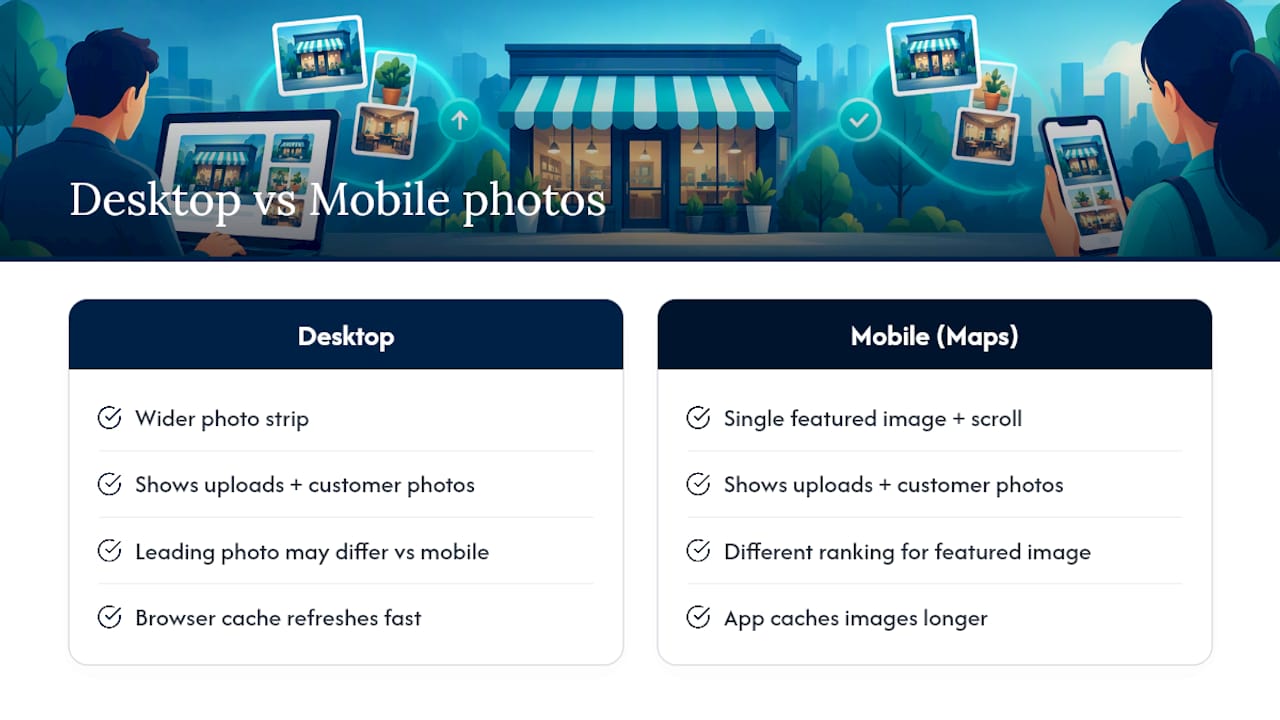
Yes, and the gap catches a lot of owners off guard. On desktop, Search and Maps tend to show a wider photo strip with more images visible at once, pulling from both your uploads and customer-submitted photos. On mobile, especially in the Maps app, the layout compresses to a single featured image plus a scrollable strip, and Google’s ranking of which photo leads that strip can differ from what desktop shows.
This isn’t a bug. It’s a rendering choice based on screen size and how each platform’s algorithm weighs recency, image quality, and engagement. A photo that’s the clear cover shot on desktop might sit third or fourth in the mobile carousel, or vice versa. If a customer tells you “your business photo looks wrong,” ask which device they were using before you assume something’s broken.
It also means testing your profile on one device only gives you half the picture. Check both a desktop browser and the Google Maps mobile app before concluding a photo issue is fixed. Cached versions compound this: mobile apps in particular hold onto old image data longer than a browser tab does, so a photo that updated correctly on desktop might still show the old version on someone’s phone until the app refreshes its local cache. Clearing the Maps app cache or forcing a refresh (pull down on the listing page) usually resolves that lag without waiting for a full re-index.
How Do Clicks and Views Affect Which Photos Google Shows?
Google doesn’t display your photos in a fixed order. It ranks them partly based on user interaction data. Photos that get more views, clicks, or engagement from people who searched for businesses like yours tend to move toward the front of the gallery, while older or less-clicked images drift down.
This means a profile with strong photo engagement can end up quietly reshuffling its own image order over time, with no action from the owner at all. If a photo you like suddenly isn’t the first one shown, it’s not necessarily suppressed. It may just be losing an engagement contest to a newer or more compelling image customers are clicking more.
Profile completeness plays into this too. A profile with accurate categories, complete business hours, and a full set of attributes gives Google’s ranking system more context to match photos to relevant searches. A sparse profile with just a name and address gives the algorithm less to work with, which can mean your best photos get shown less often simply because Google has no strong signal for which searches they’re relevant to. Filling out every applicable category and attribute field isn’t cosmetic. It’s one of the few completeness factors you can control that directly influences which photos surface.
Can Seasonal Timing or High Traffic Delay Photo Visibility?
Photo review and display can slow down around predictable pressure points. Local business owners regularly notice delays around major shopping periods, right before holidays, or during high-search-volume local events, when Google’s review systems are processing far higher upload volumes across millions of profiles.
This isn’t a permanent problem, and it isn’t unique to your account. If you upload new holiday photos on December 1 expecting them live by the next morning, the standard 24 to 48 hour window can stretch a bit longer simply due to volume. The fix isn’t to panic and re-upload. It’s to plan ahead: upload seasonal or event-specific photos at least a week before you need them visible, not the day before.
The same logic applies to major algorithm updates or platform-wide changes, which Google rolls out periodically. These can cause temporary display quirks, including photos that briefly disappear or reorder, that resolve within a few days without any action from the business owner. If a photo issue appears suddenly across many businesses at once, rather than just yours, check the Google Business Profile Help Community for reports before assuming it’s something you broke.
What Actually Matters Here
The conventional advice on this topic treats every missing photo like a mystery to be solved from scratch. It isn’t. Google tells you exactly what’s wrong through the media status label, and most owners never look at it. They re-upload, wait a week, get frustrated, and the actual answer was sitting in their manager the entire time, labeled Pending or Not approved.
Where the standard advice really falls short is on duplicates. Most guides treat duplicate profiles as a rare edge case. In practice, it’s one of the most common reasons a seemingly healthy upload never reaches the public listing, because the traffic and the photos are split across two versions of the same business that Google hasn’t reconciled.
If you take one thing from this guide, make it this: check status and verification before you touch a single file. Everything downstream, the file fixes, the appeals, the cover photo tweaks, only matters once you know which of the five actual causes you’re dealing with. Guessing first and diagnosing second is how a 48-hour fix turns into a two-week headache.
— Michael
Let Tradewindsunitedmedia Handle Your Photo and Profile Cleanup
Chasing down a rejected photo, a duplicate listing, and a verification gap all at once eats an afternoon most business owners don’t have. Professional services handle the whole diagnostic workflow: media status checks, verification troubleshooting, duplicate resolution, and appeal documentation, so you’re not the one refreshing your Business Profile manager every hour wondering if a photo cleared review.
Our Google Business Profile work covers photo audits, claim and verification assistance, and hands-on appeals support when Google flags an image incorrectly. We pair that with ongoing reputation management so your listing’s photos, reviews, and category data all work together instead of fighting each other for visibility. If you’re also rebuilding how customers find you online, our local SEO reporting shows exactly what’s moving the needle month over month.
Before reaching out, gather your profile URL, screenshots of any status labels, and the original photo files. Then head to our Google Business Profile optimization playbook to see the full scope of what we handle, or contact us directly to get your listing back on track.
Sources
- Manage your Business Profile photos & videos – Computer – Google Business Profile Help
- Tips for business-specific photos on your Business Profile – Google Business Profile Help
- Overview of Google Business Profile policies – Google Business Profile Help
FAQ
Why are my photos not showing up on my Google Business Profile?
The most common reasons are a photo still stuck in Pending status, an unverified profile, a policy rejection, or a duplicate listing splitting your traffic. Check the media status in your Business Profile manager first before assuming something is broken.
Why did my Business Profile photos disappear after showing up fine before?
This usually points to a platform update, a duplicate profile that recently got merged, or a policy review that reclassified an older image. Community reports on the Google Business Profile Help Community often confirm these episodes are temporary and resolve within a few days.
Is Google Photos the same as Google Business Profile media?
No. Google Photos is your personal photo backup and gallery app, while Business Profile media is the public-facing image gallery tied to your listing. If your phone gallery is missing personal photos, check your Google Photos backup settings instead, since that’s a completely separate system.
Why is my business no longer showing up on Google at all?
If the entire listing disappeared rather than just photos, suspect a policy violation, an unresolved duplicate profile, or a verification lapse. The Business Profile policy overview explains the main causes, and a suspended profile needs its own dedicated fix before photos matter at all.
How long does it take for a Google Business Profile photo to appear?
Google’s own guidance sets the window at 24 to 48 hours for standard processing. If you’ve appealed a rejection, add up to five business days for that review to complete.
Can Tradewindsunitedmedia fix a rejected or missing photo for me?
Yes. Tradewindsunitedmedia’s Google Business Profile services include photo audits, verification troubleshooting, duplicate resolution, and appeal support so you don’t have to manage the back and forth with Google yourself.