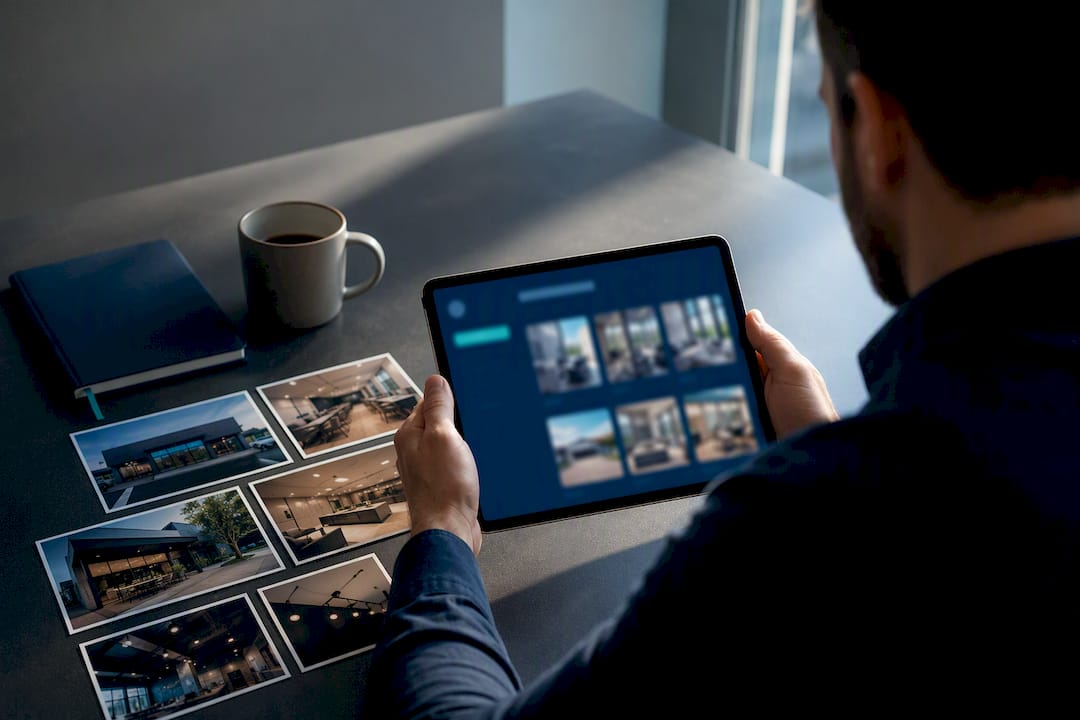
Verify your Google Business Profile to claim ownership and appear on Search and Maps. Google assigns your verification method automatically. It could be video, postcard, phone, text, email, or a live video call. Most reviews finish within five business days, and video verification, when offered, tends to be the fastest path with the fewest surprises.
TL;DR:
- Video verification offers the fastest review time, typically within one or two days, but it requires a continuous, unedited recording from a mobile device.
- Postcard verification is reliable but can take around 14 days for delivery, and the code expires after 30 days, requiring careful scheduling.
- Verification methods like phone, email, or live video call depend on real-time eligibility and availability, with specific requirements to be met for each.
- Common issues preventing verification include mismatched address details, non-visible signage, or changes to business information after requesting verification, which require targeted evidence for resolution.
- After verification, promptly complete your profile with hours, photos, and services, while avoiding unnecessary edits that could trigger re-verification.
Table of Contents
- How Google Business Verification Works and Which Methods You’ll See
- Video Verification Checklist: What to Record and How to Upload It
- Postcard, Phone, Email, and Live Video Verification Explained
- Fixing Common Verification Problems and Re-Verifying
- What to Do Right After Your Business Gets Verified
- Why Verification Is a Strategic Move, Not Just a Checkbox
- Skip the Trial and Error on Your Google Listing
- Sources
- FAQ
How Google Business Verification Works and Which Methods You’ll See
Everything starts at business.google.com/add, or by searching your business name on Google Maps and selecting “Claim this business” if a listing already exists. You’ll need to sign in with a Google Account tied to the business, not a personal side project. From there, Google decides what verification options you’re eligible for based on your business category, how much public information already exists about you, and whether you’ve listed accurate hours.

You don’t get to pick your method off a menu. Google runs the eligibility check behind the scenes and shows you what’s available.
Here’s what typically shows up, and what each one means for your timeline:
- Video verification: Fastest when offered, reviewed in as little as a day or two, but requires a live, unedited recording that meets strict criteria.
- Postcard by mail: Reliable but slow. Google’s own guidance puts arrival at around 14 days, and the code expires 30 days after that.
- Phone or text: Near instant if your business line can actually receive a call or SMS in real time.
- Email: Fast, but only available if Google already has a verified email tied to your domain or listing.
- Live video call: Reserved for specific business types where an agent walks you through proof on a call.
One eligibility note that trips up a lot of new applicants: online-only businesses with no in-person customer interaction aren’t eligible for a Business Profile at all, let alone verification. If you run a purely e-commerce operation with no storefront, office, or service area, Google Business Profile isn’t built for you.
Video Verification Checklist: What to Record and How to Upload It
When Google offers video verification, take it. It’s generally the quickest route to a live listing, but only if you follow the requirements to the letter. Google requires an unedited, continuous recording of at least 30 seconds, captured and uploaded directly from a mobile device. No pre-recorded footage, no stitched clips, no filters.
Before you hit record, walk through this:
- Charge your phone and clear storage. You’ll be filming and uploading in one session.
- Grant camera, microphone, and location permission when your Business Profile app asks.
- If you have a storefront, film your permanent signage, your street address or a visible address marker, and the interior showing active operations.
- If you run a hybrid or service-area business, show a branded vehicle, tools, inventory, or your workspace, plus any paperwork with your business name and address.
- Keep the camera rolling the entire time. Stopping and restarting invalidates the clip.
- Upload immediately through the Business Profile app or dashboard once you’re done.
After upload, Google reviews the video, generally within five business days. If you get a “Review issues” notification, Google lists specific reasons for the denial, things like a business name that wasn’t visible or a location that couldn’t be confirmed.
Pro Tip: Don’t just re-record the same footage and hope. Read the exact review issue Google lists, then make sure your next video explicitly and obviously shows the missing element, a close-up of the signage, a wider shot of the address, whatever was flagged. Vague resubmissions get vague denials.
Postcard, Phone, Email, and Live Video Verification Explained
If video isn’t offered or doesn’t work for your situation, you’ll land on one of four other methods. Each has its own quirks.
- Postcard: Google mails a physical card with a verification code to your listed address. Arrival typically takes about 14 days, and the code expires 30 days after that. Do not touch your business name, address, or category while waiting. Any edit invalidates the code and forces you to start over.
- Phone or text: This only works if a real person can answer or receive a text at the moment Google calls. Automated phone trees or IVR systems will cause the verification to fail.
- Email: Google sends a link or code to the email address already tied to your listing. Open it, click through or enter the code, and you’re done in minutes.
- Live video call: An agent walks you through the process in real time. Have your business license, a recent utility bill, or signage visible on camera when asked.
Sometimes Google shows more than one option at once. If your first attempt stalls, whether a text never arrives or a postcard gets lost, go back into your Business Profile manager and check if an alternate method has become available.
Fixing Common Verification Problems and Re-Verifying
Most verification failures come down to a handful of repeat offenders: signage that isn’t visible, an address that doesn’t match public records, or missing proof of management for service-area businesses. When Google flags a “review issue,” it names the specific gap, so read it closely instead of guessing.
Follow this sequence when something goes wrong:
- Read the exact review issue Google lists in your Business Profile dashboard.
- Gather targeted evidence: a close-up of your storefront name, a nearby street sign, a business permit, or a utility bill with your business address.
- Confirm you haven’t edited your business name, address, or category since requesting a code. Any change invalidates postcard or phone codes automatically.
- If someone else already verified your listing, use the “request ownership” option in Business Profile Manager or through Maps to reclaim access.
- Resubmit only after you’ve addressed the specific issue Google named, not a generic retry.
Pro Tip: If you’ve been denied twice for the same reason, stop resubmitting the same evidence and contact Google’s support channels directly. A live agent can sometimes catch a mismatch your video or documents keep missing.
What to Do Right After Your Business Gets Verified
Check your Business Profile dashboard for a confirmation banner or email once your status flips to verified. That’s your green light to move fast, because a verified but incomplete profile still underperforms.
Work through this immediately:
- Fill in complete hours, including holiday hours, so customers don’t show up to a locked door.
- Upload current photos of your storefront, products, and team.
- List every service you offer, not just your primary one.
- Turn on messaging and add a booking or appointment link if you take reservations.
- Respond to any existing reviews within the first week.
Verification also unlocks features that were previously grayed out: Google Posts, Insights data on how customers find you, and full review management. One caution: avoid unnecessary edits to your core business details going forward. Changing your name, address, or category again can trigger a fresh verification requirement, undoing the work you just finished.
Why Verification Is a Strategic Move, Not Just a Checkbox
Verification looks like paperwork, but it’s really the gate that decides whether your business shows up when someone nearby searches for what you sell. Some digital marketing agencies work with small business owners on exactly this: profile claiming, verification prep, and the optimization work that follows, using AI for small business marketing to streamline content creation and campaigns. If you’ve been denied more than once, professional help collecting and framing the right evidence often saves weeks.
— Michael
Skip the Trial and Error on Your Google Listing
Plenty of business owners burn a month bouncing between denied videos and expired postcard codes before their listing ever goes live. Some digital marketing agencies handle the entire process for you: claiming your profile, prepping the exact evidence Google asks for, resubmitting after a denial, and building out the profile once verification clears.

Once you’re verified, the real work starts, filling out services, gathering reviews, posting updates, and making sure your listing actually pulls in calls instead of sitting dormant. That’s where a local SEO report pays off, showing you exactly where your profile stands against nearby competitors and what’s holding back your visibility. If your website isn’t converting that new traffic once people click through, it’s worth checking why your business site might not be making you money at all. Reach out for a consultation and get your profile handled by people who do this daily.
Sources
For the exact rules straight from Google, start with the Verify your business on Google help page and the video verification requirements page. To begin the process, use the add or claim your Business Profile guide. For ongoing profile management after you’re verified, see Tradewinds United Media’s Google Business Profile resource.
- Verify your business on Google – Google Business Profile Help
FAQ
How Do I Get My Business Verified on Google?
Start at business.google.com/add or claim an existing listing through Google Maps, then complete whichever verification method Google offers, usually video, postcard, phone, text, or email.
What Does Verifying Your Business on Google Actually Do?
Verification confirms you’re the legitimate owner or authorized representative, which gives you control over your listing’s information and makes your business eligible to appear fully in Search and Maps results.
How Do I Check if My Google Business Account Is Verified?
Log into your Business Profile manager or the Google Business Profile app. A verified status will show clearly on your dashboard, along with a notification if further action is needed.
Is Google Business Verification Free?
Yes. Creating and verifying a Business Profile costs nothing, and anyone asking for payment specifically to perform verification should be treated with suspicion.