You can track Google Ads conversions by creating conversion actions in Google Ads, choosing a data source (Google tag, GA4, Google Tag Manager, or server-side), installing the tag, and verifying it fires correctly. That’s the whole loop. Everything else is configuration.
Here’s the shortest path to get started:
- Define your conversion action in Google Ads (Goals > Conversions > New conversion action)
- Choose your data source: Google tag for simple setups, GTM for multi-event sites, GA4 import if you’re already using Analytics
- Install the tag sitewide (in the
<head>) and add the event snippet on the conversion page - Verify with Tag Assistant or GTM Preview before going live
- Enable Enhanced Conversions if you collect email or phone at checkout or form submission
Pro Tip: Mark only your most business-critical actions as Primary. A phone call that books a job is Primary. A “visited pricing page” event is Secondary, or skip it entirely. Smart Bidding reads Primary conversions as its optimization target, so polluting that signal with low-value events costs you real money.
Table of Contents
- Why does Google Ads conversion tracking matter for your campaigns?
- What types of conversions can you track in Google Ads?
- How do you choose the right tracking method?
- How do you set up Google Ads conversion tracking step by step?
- What do the key conversion settings actually do?
- How do you keep conversion measurement accurate as privacy rules tighten?
- What are the most common conversion tracking problems and how do you fix them?
- When should you hire a Google Ads manager or agency?
- Key Takeaways
- The part most guides skip over
- Tradewindsunitedmedia handles your conversion tracking from setup to reporting
- Useful sources and official documentation
Why does Google Ads conversion tracking matter for your campaigns?
Clicks tell you who showed up. Conversion data tells you who bought, called, or filled out the form. That distinction drives everything downstream, from how Google’s automated bidding allocates your budget to how you report ROI to a client or a boss.
Smart Bidding strategies rely entirely on conversion signals to decide which auctions to enter and how much to bid. Without clean conversion data, the algorithm is flying blind, and it will spend your budget on clicks that look good on paper but never turn into customers. This is one of the most common reasons Google Ads feels like a money pit for small businesses: the ads run, the clicks come in, but nobody closed the loop on what happened after the click.
Accurate measurement also lets you make smarter budget allocation decisions across channels. When you know a campaign generates leads at a certain cost, you can defend that spend or scale it with confidence.
The core principle: measure the action that represents real business value, not the action that’s easiest to fire a tag on.
Conversion actions are grouped into goals and can be set as Primary (used for bidding) or Secondary (observation only). Account-default goals let all your campaigns share conversion learning, which speeds up Smart Bidding’s optimization. Google recommends using account-default goals for most campaigns and reserving campaign-specific goals for situations where one campaign has a genuinely different objective.
What types of conversions can you track in Google Ads?
Google Ads supports five broad conversion categories. Knowing which one fits your business goal keeps your setup clean from the start.
- Website conversions: purchases, form submissions, signups, content downloads, and page-load events on a thank-you or confirmation URL. These are the most common and cover the majority of small-business use cases.
- Phone calls: three sub-types exist. Calls from ads (a Google forwarding number shows in the ad itself), calls from your website (a forwarding number replaces your number on-site after a click), and click-to-call events tracked via a tag. Phone call conversion tracking in Google Ads is especially valuable for service businesses where the sale happens on the phone, not on a form.
- App installs and in-app events: tracked via the Google Mobile Ads SDK or Firebase; relevant if you have an iOS or Android app.
- Offline conversions and imported conversions: you upload a CSV of closed deals matched back to the Google Click ID (GCLID) that drove the original click. This is the right approach for B2B companies where a lead converts in a CRM weeks after the initial ad click.
- Store visits: Google estimates in-store visits from users who clicked an ad and later visited a physical location. Availability depends on account history and data thresholds; not every account qualifies.
For most small businesses, the practical list is: one purchase or lead-form conversion as Primary, phone calls as Primary if calls drive revenue, and everything else as Secondary or not tracked at all.
How do you choose the right tracking method?
The right implementation method depends on your technical setup, how many events you need to track, and how much you care about privacy resilience. Here’s how the options stack up:

| Method | Best for | Technical lift | Privacy resilience |
|---|---|---|---|
| Google tag (gtag.js) | Simple sites, single conversion page | Low | Medium (first-party cookies) |
| URL-based / no-code | Basic page-load conversions only | Minimal | Medium |
| Google Tag Manager | Multi-event sites, teams with a developer | Medium | Medium–High with Conversion Linker |
| GA4 import | Analytics-first workflows, existing GA4 setup | Low–Medium | Medium |
| Server-side GTM | High-traffic, privacy-sensitive, or cross-domain | High | High |
| Offline import (GCLID) | CRM-driven sales, B2B, phone sales | Medium (CSV or API) | High |
Decision rules that actually hold up in practice:
- Simple landing page with one thank-you URL? Use the Google tag with a URL-based conversion. No developer needed.
- Multiple events (form submit, button click, purchase value)? Use Google Tag Manager with a Conversion Linker tag. This is the sweet spot for most small businesses.
- Privacy concerns, fast page speed requirements, or cross-domain flows? Move to server-side GTM, which offloads tracking to your server, reduces client-side JavaScript, and improves GCLID preservation.
- Sales close in a CRM, not on the website? Offline conversion import is your answer.
One thing that trips people up: if your landing page and conversion page are on different domains (say, your main site sends traffic to a separate checkout domain), you must pass the GCLID across that domain boundary. Without it, Google Ads can’t attribute the conversion back to the original click. The Conversion Linker tag in GTM handles this automatically when configured correctly.
Using the global Google tag sitewide sets first-party cookies on your domain, which improves measurement accuracy as browsers continue tightening third-party cookie restrictions. That’s a low-effort win worth doing regardless of which method you choose.
How do you set up Google Ads conversion tracking step by step?
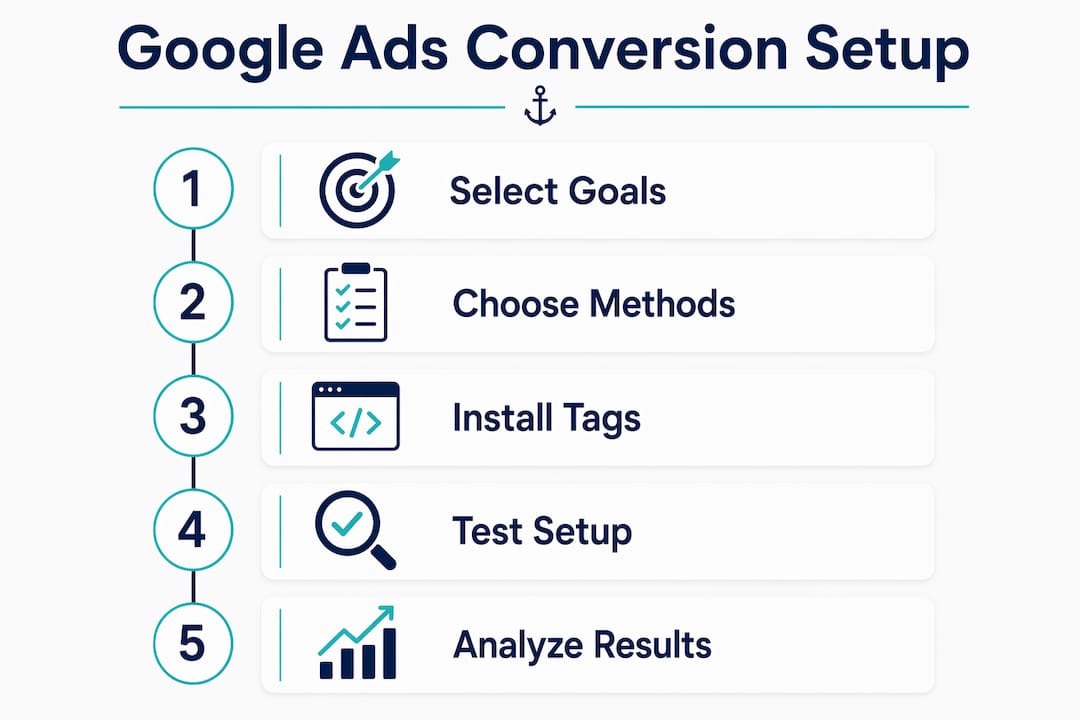
The standard setup has three phases: define the conversion action, configure the data source, and verify. Here’s the full sequence:
-
Define the conversion action. In Google Ads, go to Goals > Conversions > Summary > New conversion action. Choose “Website.” Name it clearly (e.g., “Contact Form Submit” not “Conversion 1”). Set the category (Purchase, Contact, etc.), value (fixed or dynamic), count (every or one), conversion window, attribution model, and whether it’s Primary or Secondary.
-
Gather your IDs. You’ll need your Conversion ID and Conversion Label from the tag setup screen. If you’re using GTM, note your GTM Container ID. For GA4 import, you’ll need the GA4 Measurement ID and the linked property.
-
Install the sitewide Google tag or GTM container. The Google tag (
gtag.js) goes in the<head>of every page. The GTM container snippet goes in the<head>and<body>. Both should fire on every page, not just the conversion page. -
Configure the Conversion Linker and event trigger in GTM. Add a Conversion Linker tag with an “All Pages” trigger first. This preserves the GCLID in first-party cookies. Then create a Google Ads Conversion Tracking tag, set the Conversion ID and Label, and configure the trigger (page load on the thank-you URL, or a custom event from the dataLayer for button clicks and dynamic values).
-
Enable Enhanced Conversions. In Google Ads, go to Goals > Conversions > Settings > Enhanced Conversions for Web. You can turn on automatic enhanced conversions (Google reads hashed data from your page automatically), manual (you pass hashed email or phone via the tag), or code-based (you push data to the dataLayer). Enhanced conversions improve measurement accuracy by matching hashed customer data to signed-in Google accounts, filling gaps left by cookie loss.
-
Verify end-to-end. Use Google Tag Assistant (tagassistant.google.com) to confirm the tag fires on the conversion page. In GTM, use Preview mode to walk through the conversion flow and check that the right tags fire on the right triggers. Then check Google Ads under Goals > Conversions and look at the Status column. Allow 24–48 hours for conversions to appear in reporting after a real or test transaction.
Verification checklist before you call it done:
- Conversion action status shows “Recording conversions” (not “Inactive” or “No recent conversions”)
- Google tag or GTM container fires on every page
- Conversion Linker fires before the conversion tag
- GCLID is present in the URL on the conversion page (check with browser dev tools)
- No duplicate conversion tags firing on the same event
- Enhanced Conversions switch is on and confirmed in the Google Ads UI
Pro Tip: Test on a staging environment before pushing to production. Push a test dataLayer event in GTM Preview, confirm the conversion tag fires, and check Tag Assistant. This keeps fake conversions out of your live reporting and gives you a clean baseline from day one.
What do the key conversion settings actually do?
These settings have a direct effect on how Smart Bidding behaves. Getting them wrong is one of the most common and costly mistakes in Google Ads setup.
- Include-in-conversions (Primary vs. Secondary): Primary actions feed the “Conversions” column and Smart Bidding. Secondary actions appear only in “All Conversions” for observation. Set only your highest-value, business-critical actions as Primary. Marking a trivial action as Primary tells Smart Bidding to optimize for volume rather than value.
- Count (Every vs. One): “Every” counts each conversion separately, right for purchases where one user can buy multiple times. “One” counts only the first conversion per click window, right for leads where a second form submit from the same person isn’t a new lead.
- Conversion value: Fixed value assigns a dollar amount to every conversion. Dynamic value pulls the actual transaction value from the page (requires dataLayer or CSS selector setup). Value-based bidding strategies like Target ROAS require dynamic values to work correctly.
- Conversion window: How far back Google looks to attribute a conversion to a click. Default is 30 days for most actions. Extend to 60 or 90 days for long sales cycles; shorten to 7 days for impulse purchases.
- Attribution model: Last click gives all credit to the final ad click. Data-driven attribution distributes credit across all touchpoints using machine learning. Google now defaults new conversion actions to data-driven, which is the right choice for most accounts with sufficient volume.
| Setting | What it controls | Recommended default | Why it matters for bidding |
|---|---|---|---|
| Include-in-conversions | Primary (bids) vs. Secondary (observe) | Primary for 1–2 key actions only | Directly sets Smart Bidding’s optimization target |
| Count | Every vs. One | Every for purchases; One for leads | Prevents inflated conversion counts for lead gen |
| Conversion value | Fixed, dynamic, or none | Dynamic where possible | Required for Target ROAS and value-based bidding |
| Conversion window | 7–90 days | 30 days (extend for long sales cycles) | Affects how many conversions get attributed |
| Attribution model | Last click vs. data-driven | Data-driven | Distributes credit more accurately across touchpoints |
Grouping conversion actions into meaningful categories like Purchases and Contacts, rather than dumping everything into “Other,” helps automated bidding understand your objectives. It also makes your reports readable six months from now.
How do you keep conversion measurement accurate as privacy rules tighten?
Browser privacy changes, ad blockers, and iOS tracking restrictions all chip away at client-side conversion data. Three tools address this directly.
- Enhanced Conversions send hashed customer data (email address or phone number) alongside the conversion event. Google matches that hash to a signed-in Google account and fills in attribution gaps that cookies miss. Implementation options: automatic (Google reads the page), manual (you pass hashed data via the tag or dataLayer), or code-based (developer pushes data programmatically). For manual implementation, you need at least one identifier, an email address or phone number, hashed with SHA-256 before it leaves the browser.
- First-party cookies via the global Google tag are more durable than third-party cookies and work across most browsers. Placing the Google tag sitewide creates these cookies on your own domain, which is why Google recommends it as a baseline for every account.
- Server-side GTM moves tag execution from the user’s browser to your server. The result: fewer blocked requests, faster page loads, and stronger GCLID preservation. Server-side Tag Manager requires a server container, a GA4 client, and a server-side Ads Conversion Tracking tag configured with your Conversion ID and label. It’s more work to set up, but it’s the right long-term path for businesses where measurement accuracy directly affects budget decisions.
- Consent Mode tells Google tags how to behave when a user hasn’t consented to tracking. In the U.S., consent requirements vary by state (California’s CCPA being the most prominent). For most small businesses, the practical step is to implement a basic consent banner and pass consent signals to the Google tag. Check Google’s official Consent Mode documentation for current implementation guidance, since requirements evolve.
Pro Tip: If you’re implementing manual Enhanced Conversions, hash the email or phone with SHA-256 before it reaches the tag. Sending unhashed PII to Google is a policy violation. Most tag management platforms have a built-in variable template for SHA-256 hashing.
What are the most common conversion tracking problems and how do you fix them?
Most tracking failures fall into a small set of patterns. Here’s how to diagnose and fix each one.
- “No recent conversions” status: the tag is installed but hasn’t fired a conversion recently. Check that the trigger condition matches the actual conversion page URL exactly (including trailing slashes and query strings). Use Tag Assistant to walk through a real conversion and confirm the tag fires.
- “Inactive” status: the conversion action has never recorded a conversion, or the tag isn’t installed. Verify the Conversion ID and Label match what’s in Google Ads. A single transposed character breaks the link entirely.
- “Needs attention” status: something changed, a tag stopped firing, or the conversion window expired without new data. The Conversions summary in Google Ads shows recommended diagnostic steps next to each flagged action.
- Duplicate conversions: two tags firing on the same event, or both a Google tag event snippet and a GTM tag configured for the same conversion. Audit your GTM container and your Google tag implementation to confirm only one path fires per conversion. For setups using both GA4 and Google Ads tags, use unique transaction IDs in the dataLayer to deduplicate on the server side.
- GCLID loss across redirects: if your site uses redirects between the click landing page and the conversion page, the GCLID can get stripped. The Conversion Linker tag stores the GCLID in a first-party cookie so it survives redirects. Confirm the Conversion Linker fires on all pages, not just the conversion page. For cross-domain flows, enable cross-domain linking in the Google tag configuration.
Your diagnostic toolkit: Tag Assistant, GTM Preview mode, Google Ads conversion diagnostics (Goals > Conversions > Diagnostics), browser developer tools (Network tab, check for the conversion ping), and the Status column in the Conversions summary. Allow 24–48 hours after a real conversion before concluding data is missing.
A broken conversion page can also cause tracking failures that look like tag problems. Website issues like broken forms or slow redirects prevent the conversion page from loading, which means the tag never fires in the first place.

When should you hire a Google Ads manager or agency?
Some setups are genuinely straightforward. A single landing page with a thank-you URL, one conversion action, and the Google tag installed in a website builder? You can handle that yourself in an afternoon. But several situations make professional help worth the cost.
Signs you need outside help:
- Multiple domains or subdomains where GCLID must pass across boundaries
- High-value B2B leads where offline conversion import from a CRM is required for accurate attribution
- Server-side GTM migration (requires server infrastructure, a GA4 client, and data pipeline configuration)
- Repeated “Inactive” or “No recent conversions” statuses you can’t resolve after basic troubleshooting
- Smart Bidding strategies that aren’t improving despite sufficient conversion volume
What a qualified agency should deliver:
- Full audit of existing tags, including duplicate detection and Primary/Secondary misconfiguration
- GTM implementation with Conversion Linker, event triggers, and dataLayer configuration
- Enhanced Conversions setup and verification
- Offline conversion import pipeline if your sales process involves a CRM
- Conversion actions mapped to actual business KPIs, not just technical events
- A 30-day verification period with documented status checks
Questions to ask before hiring:
- Can you show examples of server-side GTM setups you’ve completed?
- How do you handle deduplication when GA4 and Google Ads both fire on the same event?
- What does your verification process look like, and what do you deliver at the end of it?
- How do you report conversion performance against business outcomes, not just tag status?
Two scenarios where agency involvement pays off quickly: a business running Target CPA with duplicate conversions inflating the count (the algorithm thinks it’s hitting targets when it isn’t, so it underbids on real opportunities), and a B2B company whose sales team closes deals by phone but whose Google Ads account shows zero conversions because nobody set up offline import. Both are fixable, but both require someone who knows what they’re looking at. A Google Ads specialist who has handled these setups before will resolve them faster than trial and error.
Key Takeaways
Accurate Google Ads conversion tracking requires clean Primary conversion signals, a properly installed tag with Conversion Linker, and verified end-to-end firing before Smart Bidding can optimize effectively.
| Point | Details |
|---|---|
| Primary vs. Secondary matters | Mark only business-critical actions as Primary; everything else is Secondary or excluded from bidding. |
| GTM is the practical default | Google Tag Manager with a Conversion Linker tag handles most multi-event setups without custom code. |
| Verify before trusting data | Use Tag Assistant and GTM Preview, then allow 24–48 hours before reading conversion reports. |
| Enhanced Conversions fill gaps | Hashed email or phone data via Enhanced Conversions recovers attribution lost to cookie restrictions. |
| Tradewindsunitedmedia handles full setup | Tradewindsunitedmedia delivers GTM implementation, Enhanced Conversions, verification, and performance reporting for small businesses. |
The part most guides skip over
There’s a version of conversion tracking advice that tells you to track everything and sort it out later. Install all the tags, mark everything Primary, and let the data accumulate. That advice is wrong, and it’s the reason so many small-business Google Ads accounts have Smart Bidding strategies that never actually improve.
The algorithm doesn’t know the difference between a “watched your video” event and a “booked a job” event unless you tell it. When both are marked Primary, it optimizes for whichever one happens more often, which is almost always the low-value action. The result looks like performance: your “Conversions” column fills up, your cost per conversion drops, and your actual revenue stays flat.
The real discipline in conversion tracking isn’t technical. It’s deciding, before you install a single tag, which action represents a customer. One form submission that leads to a booked appointment is worth more than fifty page views. Build your Primary conversion list around that logic, and the technical setup almost doesn’t matter, because the signal you’re feeding Smart Bidding is honest.
For small businesses especially, the temptation to track everything is understandable. But a clean account with two Primary conversions and verified tags will outperform a cluttered account with twelve Primary actions and duplicate fires every time. Start simple, verify thoroughly, and add complexity only when the business case is clear.
Tradewindsunitedmedia handles your conversion tracking from setup to reporting
Setting up conversion tracking correctly takes more than following a checklist. It takes knowing which settings break Smart Bidding, where GCLID gets lost in a redirect chain, and how to read a diagnostics report when the status says “Needs attention” but the tag looks fine.

Tradewindsunitedmedia provides full Google Ads conversion tracking setup for small businesses: GTM implementation with Conversion Linker, Enhanced Conversions configuration, server-side migration when your site needs it, and a 30-day verification period with documented status checks. Every conversion action is mapped to a real business outcome, not just a technical event, so your Google Ads campaigns have the clean signals Smart Bidding needs to actually improve. If you’re ready to stop guessing whether your ads are working, request a conversion tracking audit and get a clear picture of what’s firing, what’s broken, and what to fix first.
Useful sources and official documentation
These are the primary Google references worth bookmarking. Each covers a specific part of the setup and troubleshooting process.
- About conversion measurement: the foundational overview of what Google Ads conversion tracking measures and how it connects to Smart Bidding. Start here if you’re new to the topic.
- Set up conversion tracking: Google’s official step-by-step guide covering the three-phase setup process (define, configure, verify) with the site scan tool.
- How Google Ads tracks website conversions: explains the Google tag, GTM, and server-side options, plus Enhanced Conversions implementation details and first-party cookie behavior.
- About conversion goals: covers Primary vs. Secondary actions, account-default goals, and conversion grouping best practices.
- Manage conversion goals from the conversions summary: explains the diagnostics interface, status flags (“No recent conversions,” “Inactive,” “Needs attention”), and the impact of changing goals on campaign optimization.
- About campaign-specific conversion goals: when and how to override account-default goals at the campaign level, with Smart Bidding implications.
- Google Ads conversions via server-side Tag Manager: the technical reference for server-side GTM setup, including GA4 client configuration, server-side Ads Conversion Tracking tag, and custom conversion values.