Form submission tracking means recording an event every time a visitor successfully completes and sends a form on your website, so your analytics shows real leads instead of guesses. Set it up once, test it with both a valid and an invalid entry, and tie each submission to the channel that produced it. Then you can see which ads, searches and pages bring you customers, and which ones only bring traffic.
This guide is written for owners of small and local businesses who rely on a contact, quote or booking form to win work. You do not need to be a developer to follow it.
TL;DR
- Track the completed submission, not the page visit or the button click. Starts and views are useful diagnostics, but only a submission is a lead.
- Pick the method that matches your form: a thank-you page, a built-in Google Tag Manager trigger, or a data-layer event for forms that do not reload the page.
- Test twice: once with valid data, once with deliberately bad data. A tag that fires on an error is overcounting your leads.
- Check for duplicates by submitting one form and counting the events. You want exactly one.
- Once submissions are counted, connect them to ad and search sources so the number turns into return on spend.
Table of Contents
- What form submission tracking measures and why it matters
- Three ways to detect a successful submission
- Setting up tracking step by step
- How to test that tracking is correct
- Fixing missing, duplicated or inflated counts
- Which metrics to review each month
- Using the data to get more leads from the same traffic
- Connecting submissions to marketing results
- Our view: a lead count is only useful if you can trust it
- Get your leads counted and your marketing explained
- FAQ
- Sources
What form submission tracking measures and why it matters
Every form on your site is a small funnel: people arrive, some reach the form, some start filling it out, and a smaller group submits. Google’s own guidance for lead generation in GA4 tells businesses to measure each of those stages: visitors to the site, people who reach the form, people who fill it out and people who submit it.
The distinction between those stages is the whole point. A visit to the contact page is interest. A form start is intent. A submission is a lead. If your reports count anything earlier than the submission, your cost per lead looks better than it really is, and you will make budget decisions on numbers that are not real.
For a small business, a tracked submission answers three practical questions:
- How many inquiries did the website produce this month?
- Which source (Google Ads, organic search, your Google Business Profile, email) sent the people who actually filled out the form?
- Which form, page or offer converts, and which one loses people?
Without the first answer you cannot judge your marketing. Without the second you cannot decide where to spend. Without the third you cannot improve the site.
Three ways to detect a successful submission
The hard part is not counting. It is knowing that a submission really succeeded. A button click can fail validation. A page can reload with an error. An AJAX form can send data without any page change at all. Here are the three reliable approaches, and when each fits.
| Method | How it works | Best for | Watch out for |
|---|---|---|---|
| Thank-you page view | The form sends visitors to a dedicated confirmation URL, and you track that page view | Simple contact and quote forms | Visitors can reload or bookmark the page and inflate counts |
| Built-in form trigger in Google Tag Manager | Tag Manager listens for the browser’s standard submit event | Standard forms that reload or redirect | It can fire even when validation fails |
| Data-layer or plugin event | The form tool announces a success, and Tag Manager catches it | AJAX forms that stay on the same page | Event names differ by form plugin and version |
The thank-you page method
If your form sends people to its own confirmation URL, this is the cleanest option. Analytics Mania’s thank-you page guide describes tracking that URL with a page-view trigger, then verifying it by submitting the form in Tag Manager’s Preview mode and checking GA4’s DebugView. It also covers a common small-business trap: if several forms share one thank-you page, you need a parameter or another distinction so you can tell which form produced the lead. Separate URLs per form solve this with no extra work.
The built-in trigger and the AJAX problem
Many modern forms never reload the page. They send data in the background and show a message. Analytics Mania’s WPForms guide recommends Tag Manager’s built-in Form Submission trigger for standard forms and a custom listener for no-reload forms. It explains that AJAX forms can suppress the browser’s ordinary submit event, so the fix is to inspect the form provider’s success response, push a data-layer event and limit the trigger to the one form you care about, so unrelated AJAX activity is not counted.
If you are not sure which kind of form you have, submit a test entry and watch whether the page changes. No change usually means AJAX.
Let GA4 do part of the work
GA4 can measure form interactions automatically. According to Google Analytics Help, it records a form_start event when someone begins a form and a form_submit event when they submit. These are a good starting point, and they give you the start-to-submit comparison used later in this guide. For forms where “submit” does not equal “success,” a confirmation page or a success event from the form itself is more trustworthy.
Setting up tracking step by step
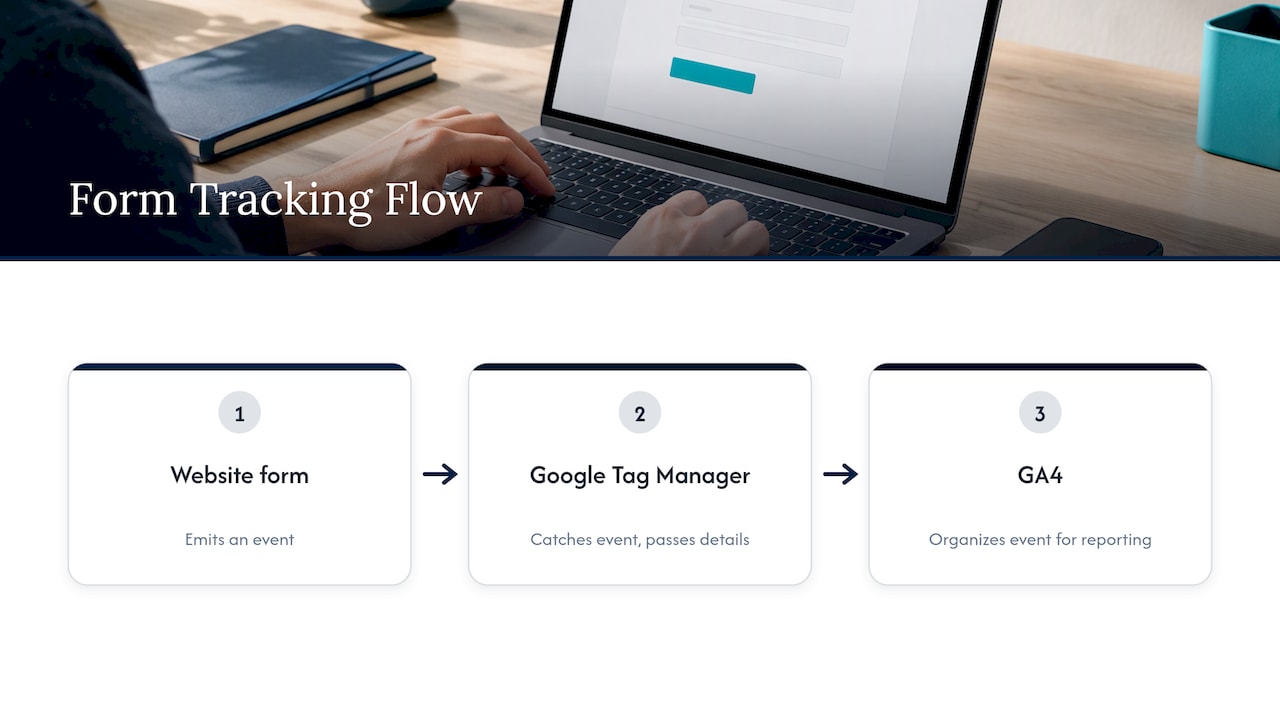
Here is the routine for the most common setup: a website form, Google Tag Manager and GA4. The flow, as Fluent Forms’ GA4 and Tag Manager documentation puts it, is that the form emits an event, Tag Manager catches it and passes along the form details, and GA4 receives an organized event for reporting.
Step 1: Decide what counts as a lead
Write it down in one sentence: “A lead is a completed submission of the quote request form with a valid email or phone number.” Decide separately whether a newsletter signup, a job application or a support request should count. Mixing them into one number is the most common reason owners distrust their own reports.
Where it goes wrong: counting every form as a lead. A newsletter signup and a $5,000 quote request are not the same event.
Step 2: Choose your detection method
Use the table above. If a thank-you page exists, use it. If the form stays on the page, use the plugin’s success event or a data-layer push. Check the exact event name against the version of the form plugin you have installed, because names change between plugins and updates.
Step 3: Create the trigger in Google Tag Manager
Build a trigger that fires only on the success signal: the confirmation URL, the success event or the form submit event restricted to your form’s ID or page. A trigger set to “all forms” will also catch your search box and your newsletter field.
Step 4: Create the GA4 event tag
Add a GA4 event tag with a clear, consistent name, such as generate_lead or contact_form_submit, and attach the trigger. Add a parameter naming the form (contact, quote, booking) so you can break results down later.
Step 5: Mark it as a key event
In GA4, flag the event as a key event so it shows up in conversion reporting. Do this only after your testing in the next section confirms the event fires correctly. Otherwise you will fill your reports with bad data that is hard to clean afterward.
Step 6: Send it to your ad platform if you run ads
If you run Google Ads, the same submission should be passed to your ads account as a conversion so campaigns can be judged on leads rather than clicks. We cover that in our guide to Google Ads conversion tracking. If you use Google’s built-in lead forms inside ads, the data lives in a different place, and our piece on wiring Google Ads lead forms to your CRM explains how to connect it.
How to test that tracking is correct
Testing is where most do-it-yourself setups quietly fail. A tag that fires is not the same as a tag that fires correctly.
Test a good submission and a bad one
Submit the form with valid data and confirm one event appears. Then submit it with a missing required field or an invalid email. Analytics Mania’s form tracking guide requires both tests, and says that a tag firing on a validation error means the trigger is too broad. Many forms that look fine on a valid test are quietly counting every failed attempt as a lead.
Use Preview mode and DebugView
Tag Manager’s Preview mode shows which tags fired on each action. GA4’s DebugView shows the events arriving in your property. Use both while you submit your test, and confirm the event name and parameters are what you expect.
Give the reports time
The Realtime report is the quickest place to see a test event. Standard reports process data on a delay, so do not panic if a test does not appear in them the same minute. If the event does not show in Realtime or DebugView, the problem is in the tag or trigger, not in reporting lag.
Exclude your own tests
Your test submissions are not leads. Note when you tested, or use a recognizable test name and email, so you can remove them from lead counts and from any follow-up list.
Fixing missing, duplicated or inflated counts
When the numbers look wrong, they are usually wrong in one of three ways.
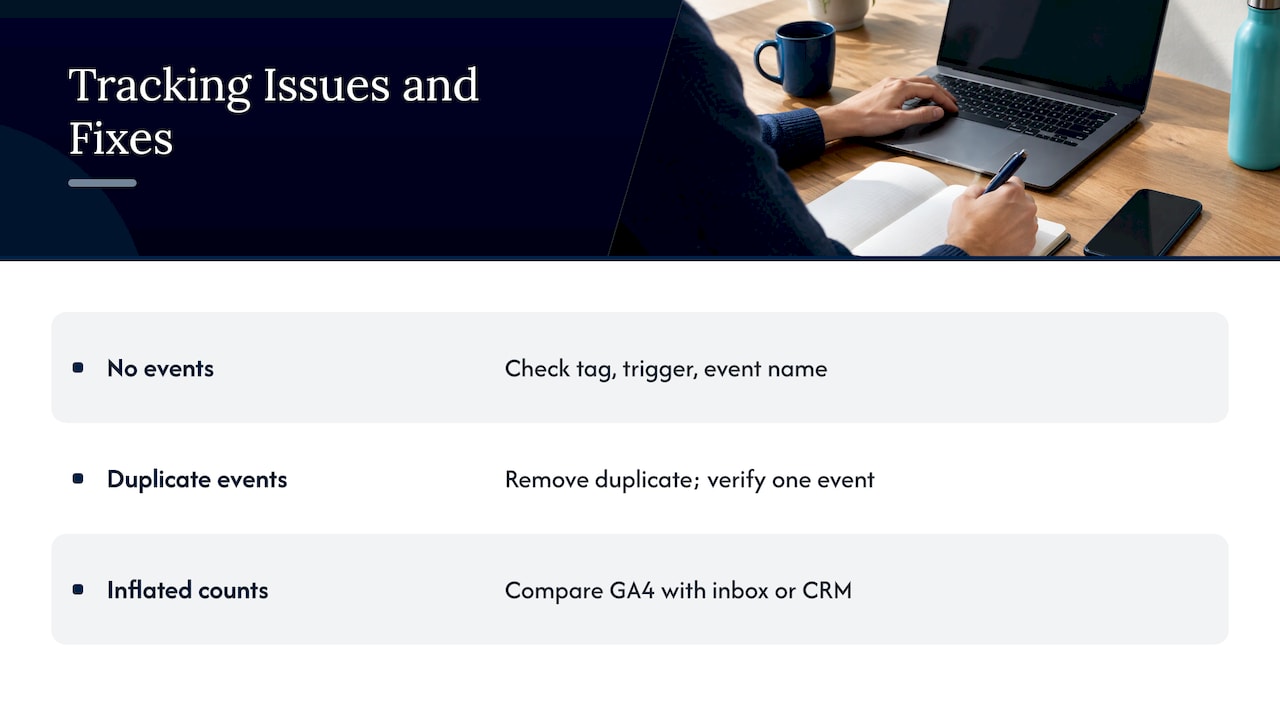
Nothing is recorded. Confirm the tag is published and not just saved in a draft workspace. Check that the trigger matches the real page URL or form ID. Then confirm the form plugin’s event name still matches after any update. If the site was redesigned, the form ID or confirmation URL may have changed.
Two events per submission. Submit one controlled test and count what arrives in DebugView. Common causes are an automatic form event from GA4 running alongside your own tag, a tracking snippet pasted directly into the site on top of one in Tag Manager, or two Tag Manager containers on the page. Remove the duplicate at its source, then submit another single test and confirm you get one event.
Far more events than real inquiries. This points to a trigger that is too broad, a thank-you page people reload, or spam submissions. Compare the GA4 count to the actual emails or entries in your inbox or CRM. They should match closely. If they do not, the gap tells you where to look.
A useful habit is a monthly reconciliation: count the submissions in your inbox, then compare to the number in analytics. A small difference is normal. A big one means something broke.
Which metrics to review each month
A raw submission count is the start, not the finish. These are the numbers worth looking at.
| Metric | What it tells you | How to use it |
|---|---|---|
| Form submissions | Total leads from the site | Track the trend month over month |
| Form starts vs. submissions | How many people begin but do not finish | Spot friction in the form |
| Submissions by source | Which channels send people who convert | Shift budget toward what works |
| Submissions by page | Which pages and offers persuade | Improve weak pages, copy strong ones |
| Lead-to-customer rate | How many leads become paying customers | Judge real lead quality |
Google’s guidance says the proportion of people who start and then submit a form can reveal friction, such as too many required questions or unexpected errors, and the gap between starts and submissions points to problems you can investigate. See Google Analytics Help for the full explanation.
Using the data to get more leads from the same traffic
Once you can see where people drop out, you can fix it without buying a single extra click. Fluent Forms’ documentation says measuring form views alongside completed submissions can expose abandonment and help you judge form length, field friction and changes to form wording; its examples include shortening a form or rewording the submit button.
A practical order for improving a form:
- Remove fields you do not use. If your team never calls the fax number you ask for, drop it.
- Say what happens next. A short line under the button, such as when you will reply, reduces hesitation.
- Reword the button. “Get my free quote” often reads better than “Submit.”
- Fix errors. Make sure error messages say exactly what to correct.
- Change one thing at a time, then compare the start-to-submit ratio over several weeks.
For a wider look at what turns visitors into inquiries, including form placement and page design, see this guide on how to turn website visitors into inquiries.
Small sample sizes matter here. A form that gets 20 submissions a month will swing widely from week to week. Give a change a few weeks before you judge it.
Connecting submissions to marketing results
A count of 40 submissions tells you what happened. It does not tell you which marketing caused it. To get there, each submission needs to carry its source: the campaign, search term or listing that brought the visitor in.
Three habits make that possible:
- Tag your campaign links consistently. Our guide to UTM tagging best practices shows how to keep source data clean so a lead from an email is not mixed up with one from an ad.
- Track phone calls as well as forms. Many local service customers call instead of typing. If you only count forms, you undercount leads. Our piece on call tracking attribution covers it.
- Follow leads to sales. The submission is the middle of the story. Marking which leads became customers lets you work out true return, which our marketing ROI tracking guide walks through for small businesses.
When you can say “Google Ads produced 18 leads and 5 became customers worth $9,000,” you are managing marketing. When you can only say “we got 60 hits,” you are hoping.
Our view: a lead count is only useful if you can trust it
Most owners who come to us frustrated with a past agency have the same complaint. They were handed a report full of impressions, clicks and traffic, and nobody could say how many real inquiries the website produced.
That is why we put so much weight on tracking the completed action. Our approach is data-driven: we want performance reports that show how your investment turns into business results, with regular updates so you are never guessing what your marketing is doing.
A form submission is the simplest example. If it is counted correctly, your website design, your SEO and your Google Ads can each be judged on the same honest number. If it is counted wrongly, every decision downstream is built on sand.
Our advice is to treat tracking as part of building the website and running the campaigns, not as an afterthought. A site designed with lead forms in mind and campaigns managed against real conversions will give you answers faster than traffic reports ever will.
Michael
Get your leads counted and your marketing explained
If you would rather have your website, search visibility and ads measured against real inquiries, that is what we do. Tradewinds United Media offers website design, SEO and Google Ads management for small and local businesses, along with clear performance reports and regular updates on what your marketing is doing.

If you are ready to see which of your marketing actually brings in customers, start at tradewindsunitedmedia.com.
FAQ
What is the easiest way to track form submissions?
If your form sends people to a thank-you page, track views of that page with a Google Tag Manager trigger and send the event to GA4. It needs no code and is easy to test. If your form stays on the same page, use the success event from the form plugin instead.
How do I know a form submission was successful and not just a click?
Track the success signal, not the button. That means a confirmation page, a success event from the form tool or a trigger restricted to valid submissions. Then test with deliberately bad data. If your tag still fires, it is counting failed attempts.
Why are my form submissions showing up twice?
The usual cause is two things recording the same submission: GA4’s automatic form event and your own tag, a hardcoded snippet and a Tag Manager tag, or two containers. Submit one test, count the events in DebugView, and remove the duplicate source.
Should I track form views and form starts too?
Yes, as secondary numbers. Google’s lead-generation guidance suggests measuring visitors, people who reach the form, people who start it and people who submit it. Comparing starts with submissions shows where people give up, but only the submission counts as a lead.
Sources
- Google Analytics Help: How to generate more leads on your website
- Fluent Forms: Event tracking with Google Analytics (GA4) via Google Tag Manager
- Analytics Mania: Thank you page tracking with Google Tag Manager
- Analytics Mania: Track WPForms with Google Analytics 4
- Analytics Mania: Google Tag Manager form tracking with Google Analytics 4